
Quickstart
Table of Contents
EmpireManager runs on three ideas.
- Every character has a Role. Tick what they do - Auctioneer, Banker, Artisan, Gatherer - and the Storage Rules route to them accordingly.
- One set of Storage Rules, shared by every character. You say “herbs go to Warband Tab 1, ore goes to Warband Tab 2.” Every alt follows that, always.
- EmpireManager stays out of your way and handles the rest. It wakes up when you open a bag, bank, mailbox, or vendor, then goes quiet again. Lightweight by design - no memory bloat.
Storage Rules#
One set of rules. Shared across your account. Edit it once, it applies forever.
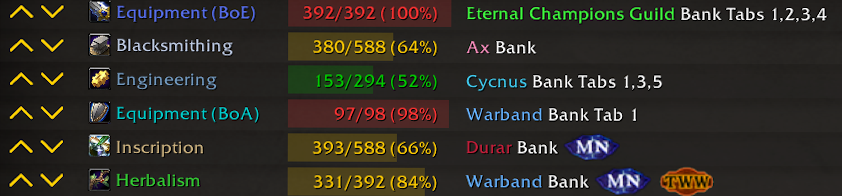
Each row is a rule: which profession/category, which destination. Priority is list order - the first matching rule wins. Full destinations spill into the next matching rule.
Storage Rules cover these category groups:
| Group | Categories |
|---|---|
| Crafting | Alchemy, Blacksmithing, Enchanting, Engineering, Inscription, Jewelcrafting, Leatherworking, Tailoring |
| Gathering | Herbalism, Mining, Skinning |
| Secondary | Fishing, Cooking, Archaeology |
| Other | Pets, PvP, Lumber, Housing, Equipment (BoE), Equipment (BoA), Recipes, Consumables, Item Enhancements |
Roles#
Each character can hold one or more roles. Roles tell EmpireManager which items belong to which character - some pair with the Storage Rules (Artisan, Gatherer), others define routing on their own (Auctioneer, Lockpicker, etc.).
- Artisan - crafter for one or two professions. Profession mats route to them via the Storage Rules.
- Gatherer - herbalist, miner, or skinner. Same pairing as Artisan.
- Auctioneer - receives unbound BoE gear for the Auction House (and disenchant routing when paired with an Enchanting Artisan).
- Banker - the designated mail recipient for a Guild Bank. Auto-set when a character is named in a Guild Bank or Character Bank Storage Rule.
- Lockpicker - receives lockboxes.
- Zookeeper - receives caged battle pets and pet consumables.
- PvPer - receives PvP tokens (Marks of Honor, etc.).
Assign roles in the Sidecar (click any character row in the Dashboard). One character can hold any combination.
Triage Is the Day-to-Day Verb#
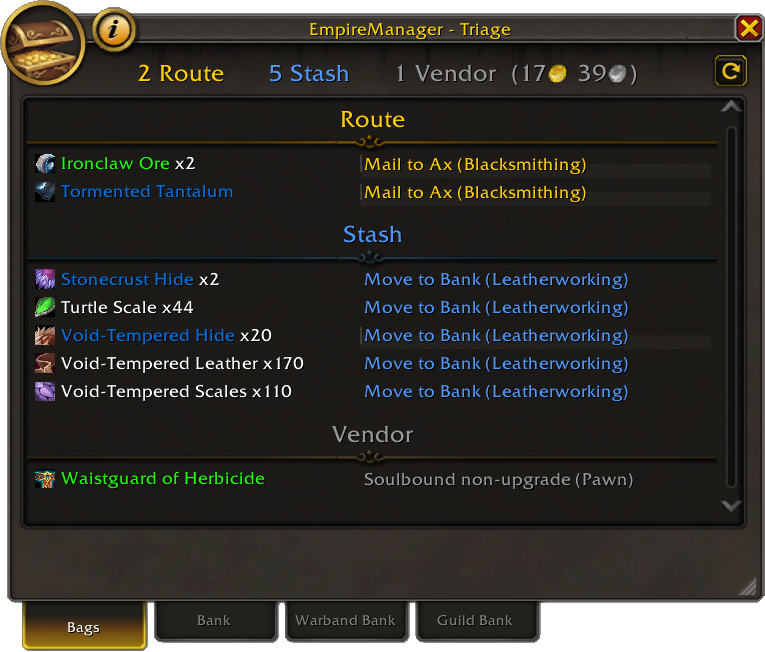
Open Triage and the addon:
- Scans the current character’s bags and any open bank.
- Classifies every item as Keep, Route, Stash, or Vendor - Keep items are hidden, the rest show up with a concrete action next to each one.
You see every move before it happens. Nothing leaves your bags until you click a button. Right-click a row to skip it for this run. And if no rule matches an item, it stays put - the addon never invents a destination.
1. Install#
Download the latest release.
2. Register Your Roster#
Two options:
Option A - Log in once per character. Each login auto-registers that character into EmpireManager’s shared database.
Option B - Bulk import via Get Characters. Log into your Battle.net, then paste the generated import string into the Import/Export window  (or run
 /em ie). Every character is registered and ready to go - their details fill in the first time you log in on each one.
3. Create Your Storage Rules#
- Click the Storage tab in the Dashboard.
- Click the Add Rule icon
 (located at the top right).
 - Pick a Category, a Bank Type, and a tab (or leave blank for “any tab”).
- (Optional) Pick an expansion filter.
- Save.
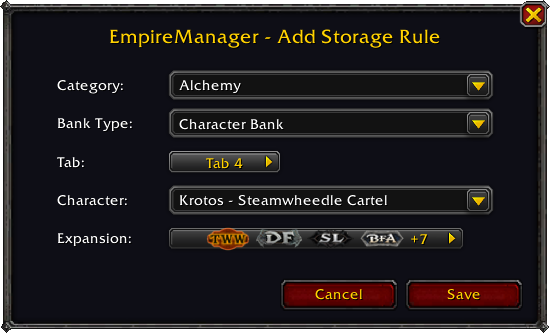
Repeat for every Category you care about.
4. Run Triage#
Log into any character with stuff to sort. Open the Triage window - either type /em triage, click the minimap button, or hit the  button in the Dashboard. The window lists every item your rules have something to say about, sorted into Route / Stash / Vendor. Action buttons appear when the matching window is open - Stash at the bank, Route at the mailbox, Vendor at a vendor - so one click clears that category.
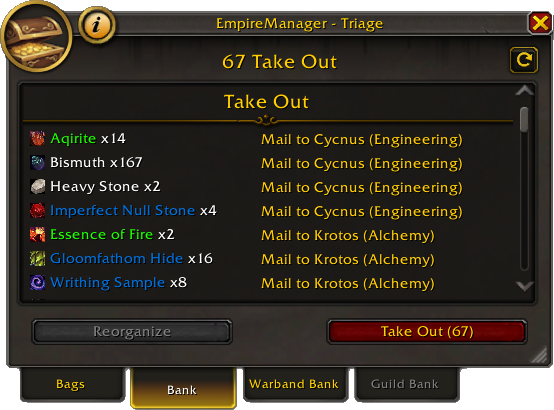
That is the core loop. Configure once. Farm. Open Triage. Click. Done.