
You keep your flipping stock in a TSM group. You want all of it out of your bags and into the Warband Bank - or the other way round, pulled out to post. Doing that by hand means shift-dragging stacks one at a time and hoping you did not miss anything sitting in a bag you forgot about.
The TSM Group Mover does it in one pass. Pick a group, say where it goes, and every item from that group shows up in Bag Triage ready for the button you already use.
What You Need#
TradeSkillMaster, loaded, with at least one group. That is it - no import, no export string, no extra setup. EmpireManager reads your groups live from TSM, so they are never out of date, and if you edit a group in TSM the next selection picks it up.
Without TSM the feature simply is not there. The button does not appear and the options are greyed out.
Where to Find It#
Open Bag Triage (/em triage, or the T button on the Dashboard). Next to the Rescan icon in the top-right corner there is a second icon - two arrows pointing at each other. That is the Mover.
Click it and the group picker opens.
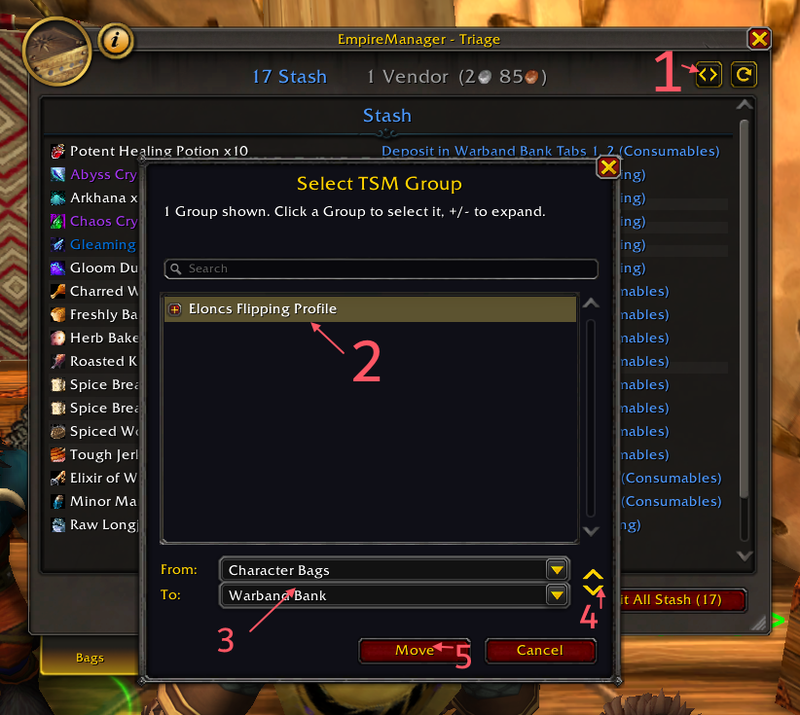
The numbers on that shot are the whole flow: 1 opens the picker, 2 is the group tree, 3 is where you set From and To, 4 swaps the two, and 5 stages the move.
Picking a Group#
The picker shows your TSM groups as a tree, the same shape you see in TSM itself. Click + or double-click a row to unfold a group and see its subgroups. Type in the search box to filter by name.
Two things worth knowing:
- Parent groups are selectable. Clicking a parent takes the whole thing, subgroups included. You do not need to hunt for an “all” entry.
- Subgroups are selectable on their own. If you only want Flipping > Herbs, pick that row and nothing else comes along.
Setting the Direction#
Below the tree there are two dropdowns:
- From - where the items are now
- To - where they should end up
One end always has to be Character Bags. World of Warcraft has no bank-to-bank transfer, so everything travels through your bags. If you want Warband Bank to Guild Bank, that is two runs: pull it out first, then put it back.
The swap button between the two dropdowns flips them, which saves re-picking both when you want to reverse a move you just did.
To starts on whichever bank you have open, since that is nearly always the one you meant.
If a route cannot run, red text under the dropdowns tells you why - two banks picked, the same place twice, or a bank you are not standing at.
What Happens Next#
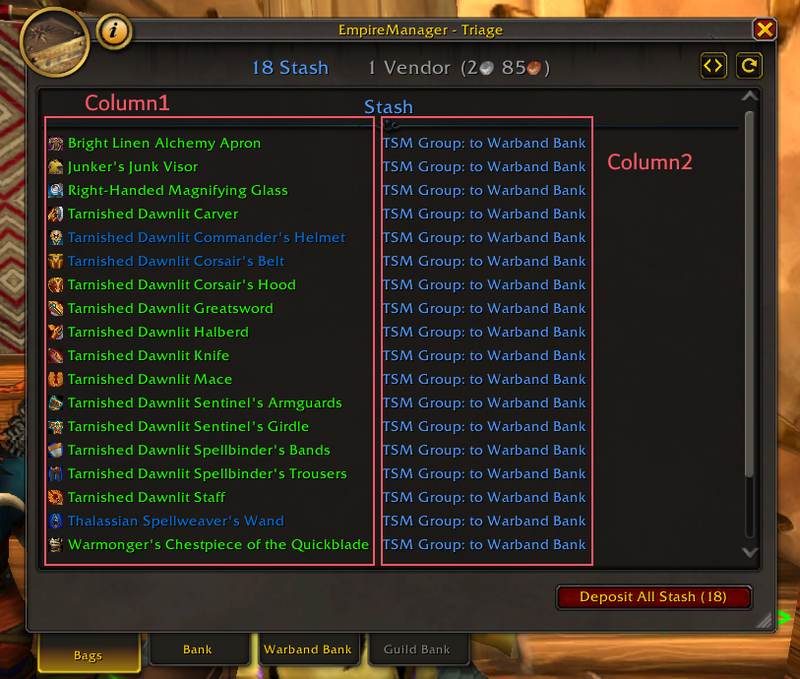
Press Move and the items appear in the Bag Triage list, tagged TSM Group: to Warband Bank or wherever you sent them.
Nothing has moved yet. This is the part worth pausing on: the Mover stages the work, it does not do it. You see exactly what is about to happen before anything leaves a bag.
From there it is the normal Triage flow:
- Moving from your bags, the items land in the Stash group. Press Deposit All Stash.
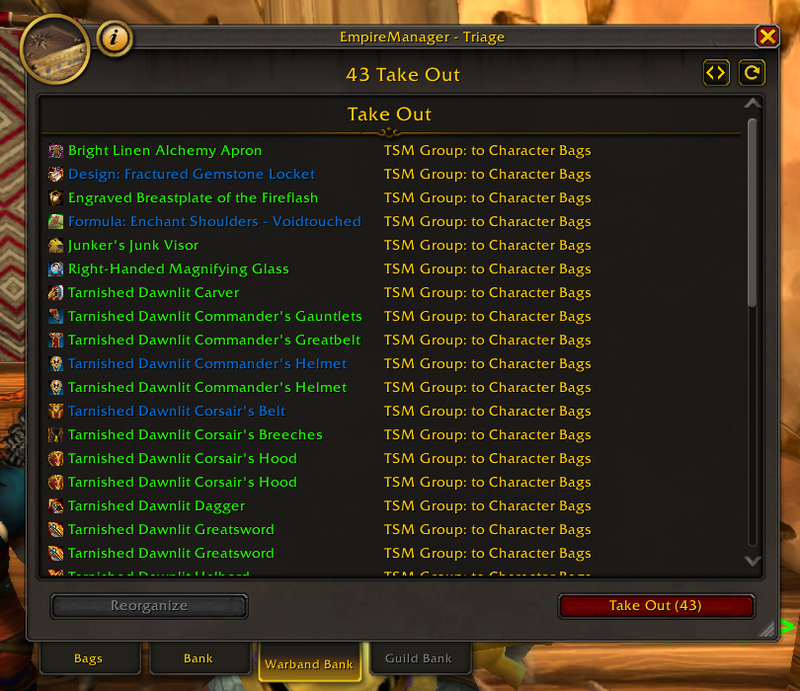
- Moving from a bank, they land in Take Out. Press Take Out.
Right-click works on every row, and which half you click decides how much it takes out:
- Right-click the left column (the item) drops that one item from the list.
- Right-click the right column (the action) drops every row sharing that action.
With a TSM group the second one clears the whole selection, since every row carries the same TSM Group: to ... action - so it is really an undo. It earns its keep on a normal Triage list, where the actions differ per rule and you can wave off one destination at a time while leaving the rest alone.
Swap the direction and the same group comes back the other way, this time under Take Out:
What It Will Not Move#
The Mover respects the same rules everything else does, so a group selection cannot push an item somewhere the game will reject:
- Soulbound items stay put. They cannot leave your character at all, so they are skipped even when the group lists them. Turn this off in Options if you want them included for a Character Bank move.
- The Keep List still wins. Anything you have protected is left alone.
- Warbound items can reach your Character Bank or Warband Bank, but never a Guild Bank.
Both behaviours are toggles, under Options > Triage > Group Mover.
Clearing It#
Press the Rescan icon. That clears the group selection along with any rows you skipped, and Triage goes back to your normal Storage Rules.
The selection is not saved. It lasts until you Rescan, close the window, or pick a different group - it is a one-off action, not a rule you are setting up.
Groups With Battle Pets#
Caged pets work. TSM stores pets by species rather than item, so EmpireManager resolves each caged pet in your bags back to its species to find the match.
Why Not a Storage Rule?#
Storage Rules answer “where does this category of item live” - a decision you make once and forget. A TSM group is a different kind of thing: it is a list you maintain for the auction house, and it changes as your flipping does.
Mixing the two would mean your TSM habits quietly rewriting your storage layout. So the Mover is a verb, not a rule. You point it at a group when you want to, and it does that one job.