
EmpireManager can export your Characters and your Storage Rules as plain text, and import them back the same way. Useful for backups, sharing a starter pack with your Guild, or syncing between accounts.
Part 1: Using the window#
This is what you need to know to actually use Import & Export. If you want the raw format details, jump to Part 2.
Opening the window#
Run /em ie, click the Import/Export button  in the Dashboard toolbar, or right-click the minimap button and pick Import / Export from the menu.
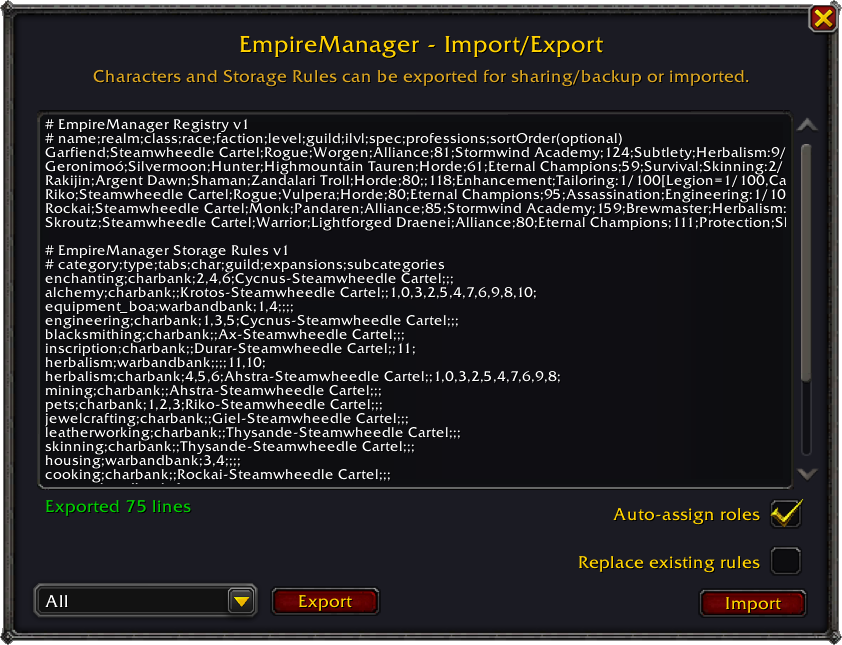
The bottom row holds the controls:
- Export Type dropdown - choose Characters, Storage Rules, or All.
- Export button - generates the text into the editor, ready to copy.
- Auto-assign roles checkbox - on by default. When checked, imported characters with crafting professions get the Artisan role, characters with gathering professions get Gatherer. Other roles are never auto-assigned.
- Replace existing rules checkbox - off by default. When checked, importing Storage Rules wipes your current rule list first. Use with care - it does not affect your Characters.
- Import button - parses whatever is in the editor.
Bulk-import your roster from Battle.net#
The walkthrough post: Skip the Login Tour.
The Get Characters web tool reads your Battle.net roster and gives you an import string for every character on your account. Drop it into the Import/Export window and your whole roster lands in the Dashboard immediately. Client-local data (gold, bags, zone) fills in the first time you log into each one.
Exporting#
Pick an Export Type, click Export. The text appears in the editor; copy it from there. Safe to share in Discord, paste into a gist, or save to a file.
Importing#
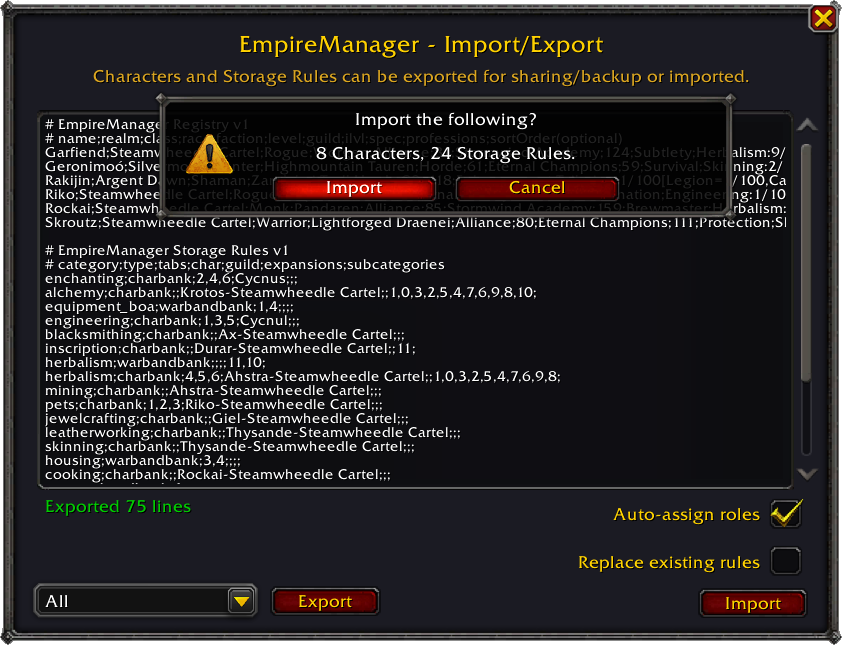
Paste the text into the editor and click Import. EmpireManager scans the paste, tells you what it found, and asks you to confirm.
Validation#
Anything that doesn’t look right gets skipped with a chat warning - the rest imports normally.
What happens to existing characters#
Existing characters in Roster are updated, not overwritten. Level and item level only move up, missing class/race/faction get filled in, and gold, bags, zone, and role assignments stay as they were - those only come from logging in.
New characters appear in the Dashboard right away; their gold, bags, and zone fill in the first time you log into them.
Characters on your Character Blacklist (/em charb) are skipped silently.
What happens to existing rules#
By default, importing Storage Rules appends to your current list. A rule is treated as a duplicate (and skipped) when its category, destination, character, guild, expansions, and subcategories all match a rule you already have - tab numbers don’t count toward the match.
Check Replace existing rules to wipe the rule list before applying the import. This does not touch your Characters - rules only.
Tab validation#
Imported rules have their tab numbers checked against the destination bank. Numbers outside the bank’s valid range get dropped, and so do tabs that aren’t actually purchased (when EmpireManager has seen the bank at least once - on a fresh install, all tabs are accepted so you don’t lose rules). If every tab on a rule gets dropped, the rule still imports as any tab rather than vanishing.
When rules reference characters or guilds you don’t have#
Storage Rules name the characters they route items to (“Alchemy mats go to Krotos”). An All export includes those characters, so a normal paste lines everything up on its own.
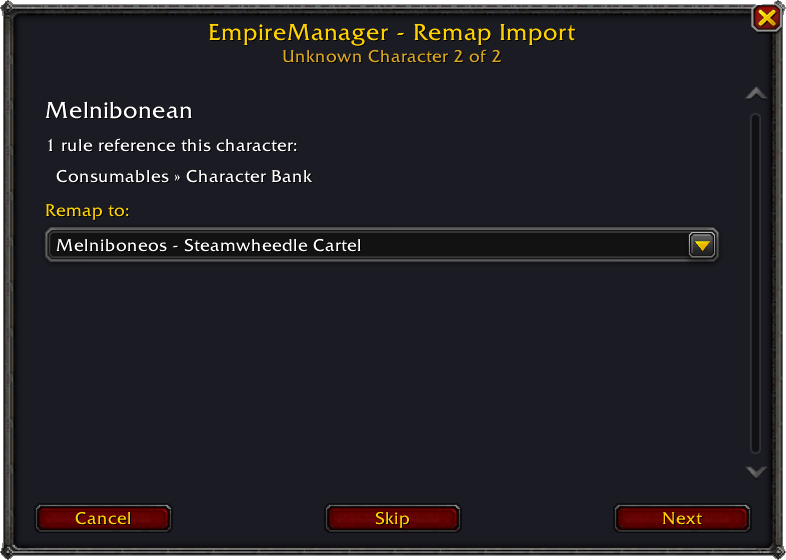
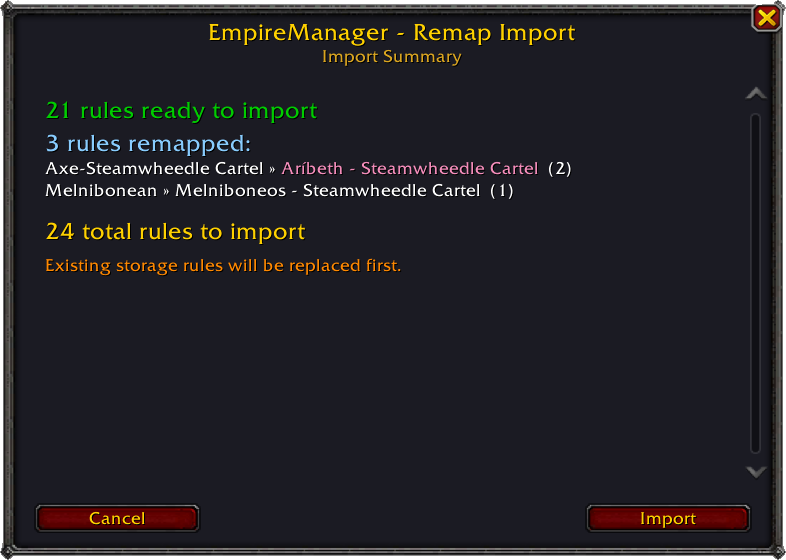
Even better: rule sets are portable between rosters. Export just your Storage Rules, hand them to a guildmate, and EmpireManager walks them through a remap dialog - one page per name in your export, where they pick which of their characters should take that role (or Skip to drop those rules). A summary page shows the final mapping; Import commits it, Cancel throws it all out. Your entire storage strategy, deployed on someone else’s roster in a few clicks.
For the full walkthrough, see Skip the Login Tour.
Use cases#
- Guild starter pack. Build a sensible default rule set and export. New members paste to get the same routing configured instantly.
- Cross-account sync. If you run multiple WoW accounts, export from one and import into the other to keep rosters and rules aligned.
- Backup before a wipe. Export All, save the text, run
/em wipe. The export brings everything back except in-game-only data (gold, bags, zone).
Part 2: Format reference#
Both formats are line-based, semicolon-separated, with # for comments and a header line that identifies the format and version.
Registry format#
# EmpireManager Registry v1
name;realm;class;race;faction;level;guild;ilvl;spec;professions;sortOrder| Field | Type | Notes |
|---|---|---|
| name | string | Character name. Capped at 32 chars. |
| realm | string | Realm name. Capped at 64 chars. |
| class | string | Class token (e.g. WARRIOR, DEATHKNIGHT) or display name (Death Knight). Either parses. Must match a known WoW class. |
| race | string | Race name. Capped at 32 chars. |
| faction | string | Alliance, Horde, or Neutral. Anything else is dropped. |
| level | integer | Clamped to 0 ... current expansion max level. |
| guild | string | Guild name, or empty. Capped at 64 chars. |
| ilvl | integer | Item level, 0-999. Out of range becomes empty. |
| spec | string | Active spec name. Capped at 32 chars. |
| professions | nested | Comma-separated list. Each entry: Name, Name:skill/max, Name[tier=skill/max,...], or Name:skill/max[tier=skill/max,...]. Unknown tier names dropped silently. |
| sortOrder | integer | Optional. 1-99, matches the # column in the Dashboard. Empty or zero on export means “no sort value”. |
Storage Rules format#
# EmpireManager Storage Rules v1
category;type;tabs;character;guild;expansions;subcategories| Field | Type | Notes |
|---|---|---|
| category | string | Profession or storage category key (lowercase). Examples: alchemy, herbalism, equipment_boe, recipes, consumables. Capped at 32 chars. |
| type | string | One of warbandbank, guildbank, charbank. Anything else fails validation. |
| tabs | comma-list | Tab numbers. Valid ranges: Guild Bank 1-7, Character Bank 1-6, Warband Bank 1-5. Empty means “any tab”. Capped at 64 chars. |
| character | string | Name-Realm of the destination character. Required for charbank; ignored for warbandbank; for guildbank the banker is auto-resolved from the Guild field. Capped at 96 chars. |
| guild | string | Guild name. Required for guildbank. Capped at 64 chars. |
| expansions | comma-list | Expansion IDs. Empty means “any expansion”. Capped at 128 chars. |
| subcategories | comma-list | Subcategory keys (e.g. potions, flasks under consumables). Empty means “whole category”. Capped at 256 chars. |
See Tab validation and the duplicate-detection note under What happens to existing rules for how these fields behave on import.
See also#
- Skip the Login Tour - the GetCharacters walkthrough for bulk-importing your Battle.net roster.
- Get Characters - the web tool itself.
- Storage Rules - what each rule field means in practice.
- Roles & Assignments - what auto-assigned roles cover.
- Bag Triage - the consumer of every rule you import.