
Bag Triage
Table of Contents
What Triage does#
Triage is the daily verb of EmpireManager. It scans your bags (and any bank you have open), classifies every item against your Storage Rules and roles, and shows you a short list of what to do next: Route to another Character, Stash in a Bank, Vendor, or - when you’re at a Bank - Take Out items that don’t belong there.
Nothing moves until you click a button. Items the addon doesn’t recognise are left alone.
Opening the window#
Type /em triage, click the Triage button in the Dashboard top bar, or shift-click the minimap button (right-click the minimap for the full menu).
Triage can also auto-open for you when context becomes useful: opening a mailbox, merchant, Character Bank, or Guild Bank triggers a fresh scan and pops the window if there’s anything actionable. Each context has its own on/off toggle in Options.
The window#
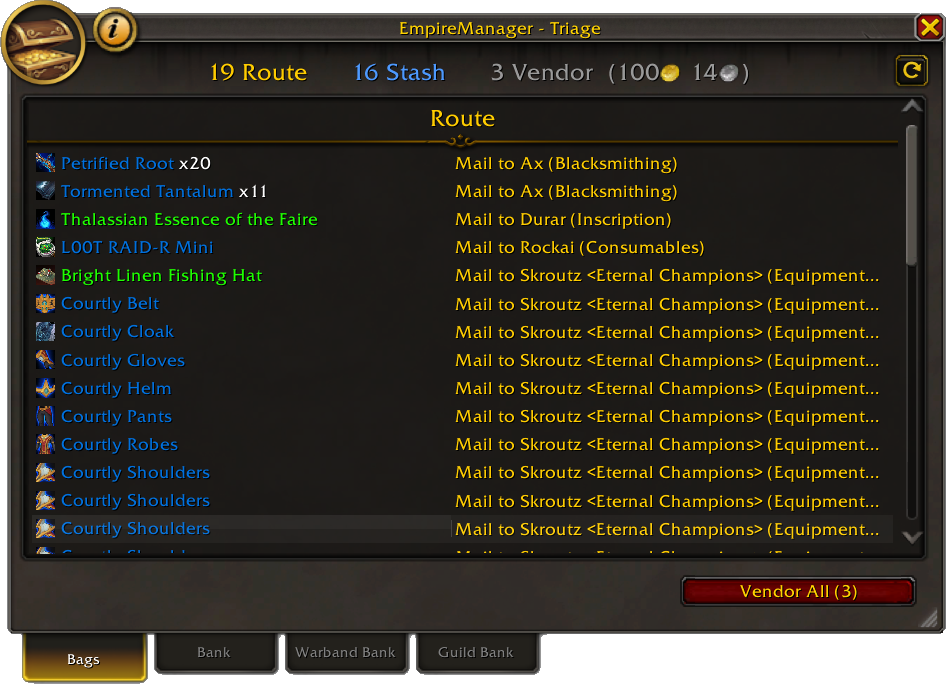
Top to bottom:
- Status / summary bar - one line that flips between “Scanning bags…” during a scan and a counts summary afterwards (e.g. “4 Route - 2 Stash - 6 Vendor (23g)”). Reads “All sorted” in green when there’s nothing actionable on the current tab. Each count is a button - click “16 Stash” to jump straight to the Stash section of the list.
- Item list grouped by category - Route, Stash, Vendor headers above each group. Each row shows the item icon, name (colored by item quality), and the planned action on the right. Hover any row for the full tooltip plus the matched rule.
- Action buttons pinned to the bottom. Which buttons appear, and which are enabled, depends on the current tab and what’s open in the world.
The window anchors itself to the relevant context frame when one is open (mailbox, merchant, bank, or the Dashboard) and floats free otherwise. You can drag it around or resize it.
The refresh button (top-right corner) rescans on left-click. Right-click clears any skipped items (see Row interactions) before rescanning.
The four tabs#
Triage has four tabs along the bottom: Bags, Bank, Warband Bank, and Guild Bank. They’re always present but enabled only when relevant:
| Tab | Enabled when |
|---|---|
| Bags | Always. The current Character’s bag contents. |
| Bank | A Character Bank is open. |
| Warband Bank | The Warband Bank is open. |
| Guild Bank | A Guild Bank is open. |
The Bags tab is what you’ll see most of the time. The other three appear when you visit the corresponding Bank.
The Bags tab: three categories#
| Category | What it means | What to do |
|---|---|---|
| Route | Belongs on a different Character. | Mail All Routable at a mailbox. |
| Stash | Belongs in a Bank. | Deposit All Stash at the right Bank. |
| Vendor | Junk, or below your vendor threshold. | Vendor All at a merchant. |
The total gold value of all Vendor items appears in the summary bar next to the Vendor count.
The Bank tabs: two categories#
When a Bank is open and you switch to a Bank tab, you’re looking at the Bank’s contents, not your bags. The category set changes:
| Category | What it means |
|---|---|
| Stash | An item that’s in the wrong tab of this Bank - your Storage Rules say it belongs in a different tab here. |
| Take Out | An item that doesn’t belong in this Bank at all - the rules say it should be in a different Bank, on a different Character, or vendored. |
Two buttons handle the two categories: Reorganize shuffles Stash items into their correct tabs within this Bank. Take Out pulls Take Out items back into your bags so you can deal with them (mail elsewhere, vendor, deposit in a different Bank).
Action buttons#
Buttons are pinned to the bottom of the window. Their labels are stable; the count of affected items shows up in parentheses when the button is usable. When a button can’t run right now, it stays visible but greys out, with a hover tooltip explaining why.
| Button | Tab | Where you need to be | What it does |
|---|---|---|---|
| Mail All Routable | Bags | At a mailbox, on the Send Mail tab | Mails Route items to their assigned recipients in batches. Asks for confirmation per recipient. |
| Deposit All Stash | Bags | At a Bank, Warband Bank, or Guild Bank | Moves Stash items into their assigned tabs of the open Bank. |
| Vendor All | Bags | At a merchant | Sells all Vendor items. Confirms when uncommon-or-better gear is included. |
| Reorganize | Bank tabs | At the open Bank | Moves Stash items within this Bank into their correct tabs. |
| Take Out | Bank tabs | At the open Bank | Pulls Take Out items from this Bank back into your bags. |
A few details:
- The Bags-tab buttons share a single slot, swapping based on what’s open in the world. You won’t see Mail and Vendor at the same time.
- Counts update live during the operation - Depositing… (4 left), Mailing…, Selling….
- Disabled tooltips name the reason - “Open a bank to deposit”, “Switch to the Send Mail tab”, “Nothing to route”, “Remote bank: deposits not supported” (when the Bank is open via Distance Inhibitor / Pack Hobgoblin / similar items).
- A
*after a count on the Bank tabs (e.g. Reorganize (5*)) means some items will be skipped because the Guild Bank’s daily withdrawal limit is exhausted on those tabs.
Why is this item here?#
Hover any row. The tooltip shows the item, the rule that matched it (or “Default routing”), and the calculated action in yellow at the bottom. If something’s in a pile you don’t expect, the hover usually tells you why in one glance.
Row interactions#
Beyond the action buttons, every row has a few more clicks:
| Click | Where | What it does |
|---|---|---|
| Hover | Anywhere | Show tooltip with the item, the matched rule, and the calculated action. |
| Right-click | Left half (item icon / name) | Skip this item for the current scan. |
| Right-click | Right half (action text) | Skip this action (e.g. every Vendor row of that bank type). |
| Right-click | Section header | Skip every item in that section. |
| Ctrl+click | Anywhere on the row | Add to the Keep List. |
Skips last until the next rescan. Permanent exceptions go on the Keep List instead.
The vendor confirmation#
When you click Vendor All, Triage splits items by quality:
- Junk and Common (gray, white) sell silently.
- Uncommon and above (green, blue, purple) trigger a confirmation popup.
The popup lists the uncommon+ items with rarity colors and gives you three choices: Sell (vendor everything), Skip (sell only junk/common, keep the quality), Cancel (abort).
The confirmation gate can be turned off in Options - Triage → Vendor → Confirm uncommon+ vendor.
Buyback safety: WoW’s buyback queue holds only the last 12 items sold. EmpireManager sells lowest-quality first, so any green/blue/purple gear stays at the top of the buyback list and is recoverable longest.
Auto-open toggles#
Triage pops open by itself when context becomes useful, controlled by four independent toggles in Options:
- Open on Bank open - Character Bank or Warband Bank.
- Open on Guild Bank open.
- Open on Mailbox open.
- Open on Vendor open.
The chat summary lines print regardless of these toggles - they’re separately controlled by the Chat Messages option.
Advanced topics#
Soulbound gear vendoring
By default, soulbound gear is always Keep. The addon won’t decide on its own whether a soulbound item is worth selling.
Two opt-in toggles in Options → Triage → Vendor let you change that:
| Toggle | What it does |
|---|---|
| Pawn integration | If Pawn is installed, soulbound gear that Pawn marks as a non-upgrade routes to Vendor. Items Pawn marks as an upgrade Keep. Items Pawn is uncertain about Keep. |
| iLvl fallback | Soulbound gear with a lower item level than what you have equipped in the same slot routes to Vendor. For rings/trinkets, compares against the lower-iLvl equipped piece (conservative). |
Both can be enabled at once - Pawn is checked first; iLvl fallback runs only when Pawn doesn’t have a verdict.
Before either runs, a stack of safety guards protects gear you almost certainly want to keep:
- Items in a saved equipment set - always Keep, named in the action (“Equipment set: Bear Form”).
- Trinkets and rings with “Use: Teleport” - always Keep. Hearthstones, Kirin Tor rings, etc. are too useful to risk.
- iLvl ceiling (when set in Options) - gear at or above the ceiling Keeps regardless of Pawn or iLvl comparison.
- Wrong armor/weapon type - a plate drop on a cloth caster, a bow drop on a warrior, etc. always Keeps.
The full safety-guard order: equipment set → teleport → iLvl ceiling → gear type → Pawn → iLvl comparison. The first guard that says Keep wins.
Pawn only evaluates gear against your currently active spec. If you swap specs and run Triage without re-equipping, wrong-spec gear in your bags may get flagged. The Keep List is the easy way to permanently protect specific off-spec pieces.
Quest items and old keys
Quest items and keys usually Keep - they’re tied to active or future content. With Stash Old Quest Items enabled in the Sidecar for a Character, the rules relax:
- If the item belongs to a previous expansion, Triage stashes it in that Character’s Character Bank instead of cluttering bags.
- The action reads “Move to Bank (Old Quest item)”.
- Bind state doesn’t matter - bound, warbound-until-equipped, and unbound legacy items all stash. The expansion filter is what protects current content.
This is a per-Character toggle, off by default. Turn it on for alts you’ve cycled out of current content.
Mailing recipients
Items that route across Characters end up in your mailbox. Triage uses your Storage Rules and roles to pick the recipient:
- Profession mats with a Character Bank or Guild Bank rule → the named banker (preferring a Character with the Banker role for Guild Bank rules).
- Locked lockboxes → the Lockpicker. Battle pets / pet items → the Zookeeper. PvP tokens → the PvPer.
- Unbound BoE gear → the Auctioneer (and optionally the Enchanter, see Integrations for TSM disenchant routing).
Within a Realm, items mail directly. Across Realms, regular tradeable items can’t be mailed at all - Triage falls back to Stash in Warband Bank for {Name}, treating the Warband Bank as a staging area. Warbound items can be mailed across Realms within the same Battle.net account.
The deeper matrix is on the Mailing page.
When something goes wrong#
For chat warnings, failed deposits, and “all matching destinations are full” - see Troubleshooting Triage.
See also#
- Keep List & Vendor Whitelist - account-wide item overrides.
- Troubleshooting Triage - what every chat warning means and how to clear it.
- Storage Rules - where Stash items go, and the priority + overflow rules behind every routing decision.
- Roles & Assignments - who Route items get mailed to.
- Mailing - the full mailing matrix, batching, and cross-Realm details.
- Integrations - optional Pawn and TSM hooks that influence Vendor and Route decisions.
- Options - every toggle that affects Triage behavior.